


Zotero is where many researchers keep the work they cannot afford to lose. It holds the paper discovered six months ago, the note that finally made a difficult method click, the citation needed before a deadline, and the PDF that is somehow still called fulltext(7).pdf.
AI research tools usually sit somewhere else.
That separation creates a tedious routine. You find a paper with an AI tool, copy its DOI into Zotero, download the PDF again, and try to remember which version contains your notes. When it is time to write, the analysis and the reference library live in different places.
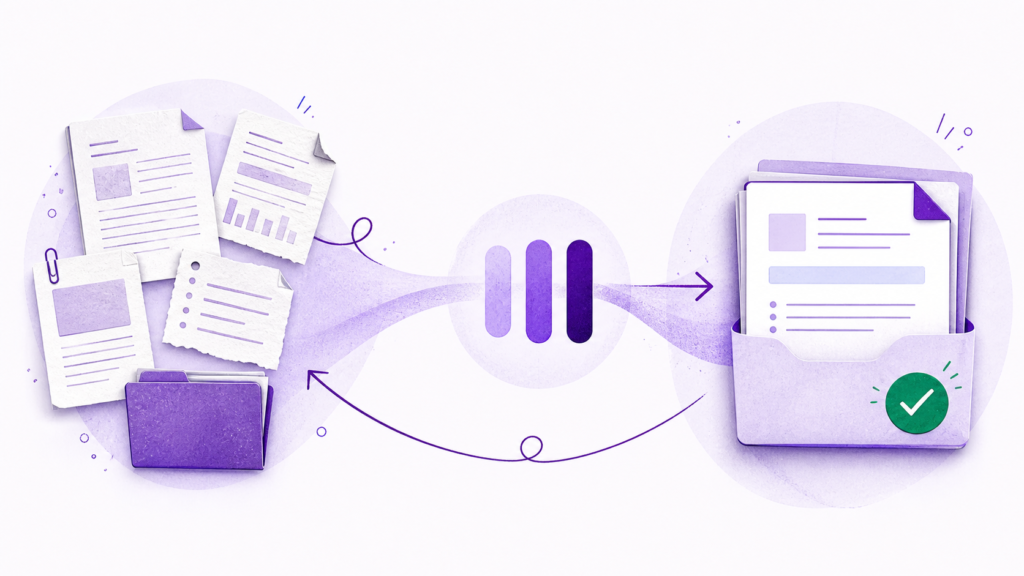
CoChat’s new Zotero AI integration closes that gap. Connect Zotero once and your papers, notes, collections, and PDFs can move between Zotero and CoChat. Papers saved in Zotero become available for research in CoChat. Verified papers found in CoChat can return to Zotero, ready for the citation workflow you already use. Notes stay connected to the paper instead of disappearing into another app.
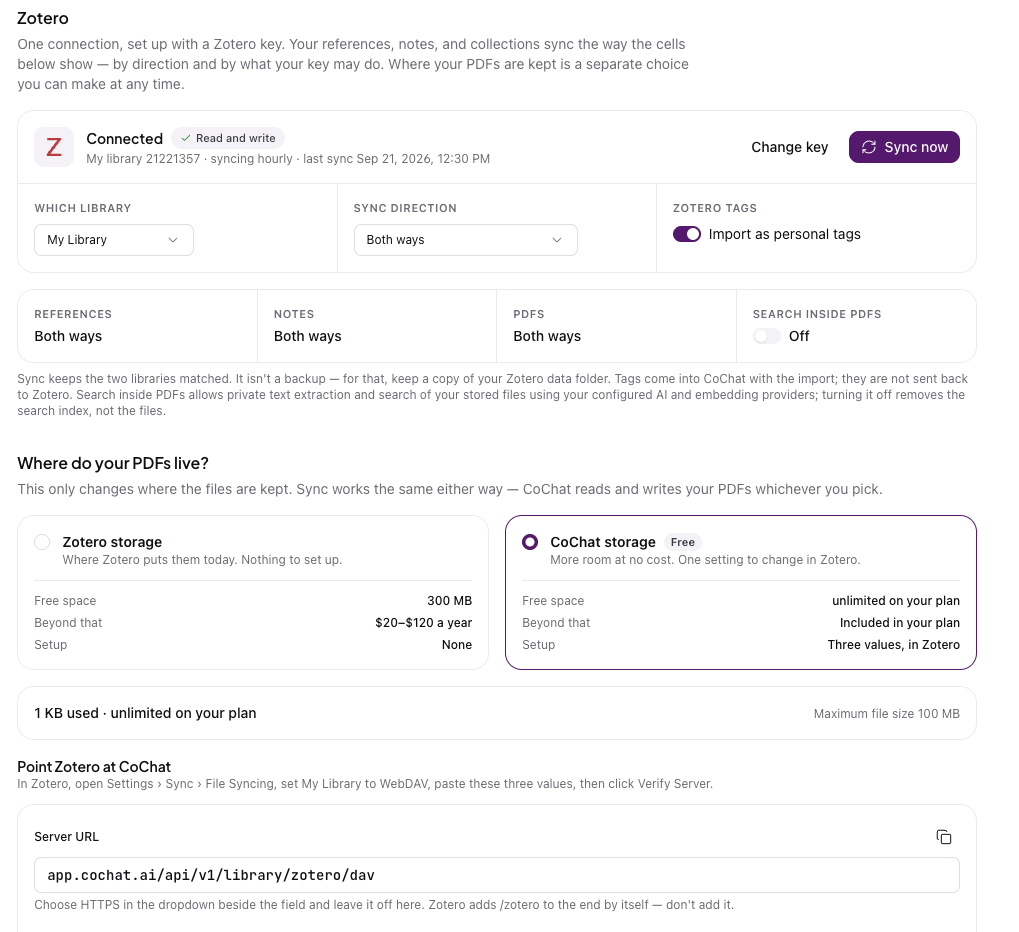
You can also use CoChat as free Zotero WebDAV storage. The free CoChat plan includes 10 GB for personal-library PDFs, with a maximum file size of 100 MB.
Zotero remains your reference manager. CoChat adds an AI research workspace around it.
What the CoChat Zotero integration does
The integration covers four parts of the research workflow.
Bring your Zotero library into CoChat
Your first sync walks through the Zotero library you selected. CoChat looks for items it can identify through a DOI, arXiv identifier, or resolvable source link. Identified papers enter your CoChat Library, where you can organize them around research questions, search across them, compare methods, inspect claims, and use them in literature review tables.
Items that cannot be verified do not quietly become questionable paper records. CoChat places them in a review list instead. That gives you a chance to fix missing metadata or decide whether the item belongs in your research corpus.
This matters because a Zotero library often contains more than journal articles. It may include web snapshots, standalone notes, reports, presentations, scanned documents, or PDFs with almost no metadata. Treating every object as a verified scholarly paper would make the imported library look cleaner than it really is.
Send verified papers back to Zotero
A Zotero AI integration is only useful if it respects the citation workflow researchers already trust.
When you add a verified DOI-backed paper to your CoChat Library, CoChat can create or match the corresponding Zotero item. Papers associated with a CoChat research question are placed inside a matching subcollection under a main CoChat collection. Papers without a research question sit directly inside that main collection.
If CoChat has a PDF for the paper, it can travel with the reference. The PDF might be a file you uploaded, an open-access copy CoChat found, or a copy already available in your Library.
Open your word processor after the next sync and the paper is available through your normal Zotero citation plugin. You do not need to rebuild your bibliography in another system or export references whenever your research changes.
Keep research notes connected to the paper
Notes can sync between a paper in CoChat and a child note on its matching Zotero item. A note written while reading in Zotero can appear beside the paper in CoChat. A note refined during analysis in CoChat can return to Zotero on the next sync.
Notes created by CoChat carry a cochat tag in Zotero, so their origin remains visible.
CoChat also accounts for the moment when both copies change before a sync. Instead of choosing a winner behind the scenes, it records a conflict. The sync history then asks whether to keep the Zotero version or the CoChat version.
That is a small detail until the conflicting note contains the paragraph you spent an hour getting right.
Move PDFs in either direction
You choose where personal-library PDFs live:
- Keep using Zotero Storage.
- Use CoChat’s Zotero WebDAV storage.
The reference and note workflow remains connected either way. The choice changes where attachment files are stored, not whether the library can sync.
Zotero AI without replacing Zotero
Some tools treat integration as a polite word for import. They pull your data into a new system, then expect you to abandon the old one.
That is not the idea here.
Zotero still handles the jobs it already does well: reference management, citation styles, word processor integration, and long-term library organization. CoChat handles the research work that tends to happen around the library: searching scholarly sources, reading full text, comparing papers, checking citations, organizing evidence, and building reusable research outputs.
The practical result is a connected loop:
- Save papers in Zotero while browsing or reading.
- Let them sync into your CoChat Library.
- Analyze the papers individually or as a research corpus.
- Add newly discovered, verified papers to the same project.
- Send those papers and available PDFs back to Zotero.
- Cite them through Zotero as usual.
The researcher remains the author and verifier. CoChat handles the repetitive movement, checking, and organization that usually happens between tabs.
Why the integration uses a Zotero API key
Zotero separates data syncing from file syncing.
Data syncing covers library items, notes, links, tags, and other library information. Zotero says this part is free and unlimited. Attachment files such as PDFs use a separate file-syncing system through either Zotero Storage or WebDAV. You can read the distinction in Zotero’s syncing documentation.
That separation explains why CoChat asks for an API key even if you plan to store PDFs with WebDAV. The API key gives CoChat access to the library structure: the item metadata, notes, collections, and relationships that explain which attachment belongs to which paper. WebDAV handles the files themselves.
You create a dedicated key at zotero.org/settings/keys. Use read access if you only want Zotero items brought into CoChat. Add note and write access if you want papers and notes to travel back to Zotero. Zotero also lets you set separate permissions for personal and group libraries.
A dedicated CoChat key is better than reusing one created for another service. If you later disconnect the integration, you can revoke that key without affecting your other tools.
Two-way Zotero sync without duplicate papers
Two-way sync creates more ways for software to damage a library. CoChat is designed around the failures researchers worry about most.
It matches before creating
If a paper already exists in Zotero, CoChat looks for the matching identifier before creating anything. The existing item can be placed in the appropriate CoChat collection without producing another copy.
Sending the same CoChat research question again updates its collection rather than creating a new collection every hour.
It does not overwrite a Zotero edit blindly
Suppose you correct an author name or publication detail in Zotero. CoChat does not respond by writing older metadata over your correction during the next sync.
If an existing Zotero item has changed, CoChat leaves its metadata alone. The integration can connect the item to a CoChat collection without treating Zotero as an empty destination.
It makes note conflicts visible
When the Zotero and CoChat versions of a note both changed, neither version is silently discarded. The conflict appears in sync history with controls to keep one version or the other.
Paper metadata and personal notes need different rules. Metadata should generally respect the existing Zotero record. Notes may contain legitimate work from both systems, so the researcher gets the final decision.
It does not spread deletions
Deleting a Zotero item unlinks it from CoChat. It does not delete the paper, notes, or project work already stored in your CoChat Library. CoChat also does not delete items from Zotero.
This is sync, but it is not a shared delete button.
It keeps unverified material out of the outbound queue
CoChat only sends verified DOI-backed papers to Zotero. A pasted paragraph, uploaded report, unidentified PDF, or web page without a verified DOI stays in CoChat rather than becoming a citation-ready Zotero item.
That boundary is intentional. A clean-looking reference is not useful if nobody can verify what it points to. See how CoChat handles this in our guide to finding and verifying sources with AI.
What happens when Zotero storage is full?
Every Zotero account includes 300 MB of free file storage. Zotero’s current individual plans then offer 2 GB for $20 per year, 6 GB for $60 per year, or unlimited storage for $120 per year. The current allowances and pricing are listed on Zotero’s file storage page.
The 300 MB limit applies to attachment files, not ordinary library metadata. Zotero data syncing remains free and unlimited.
For a library with a few dozen PDFs, 300 MB may be enough. For a dissertation, systematic review, or lab archive, it can disappear quickly. One large supplementary file can take a noticeable bite out of the allowance.
If you keep Zotero Storage selected, CoChat can read and write PDFs through the Zotero file API. Uploads count against your Zotero quota. If the quota is full, the reference can still sync even when its PDF cannot.
If you would rather not purchase more file storage, choose CoChat storage instead.
Free Zotero WebDAV storage with CoChat
WebDAV is a standard way for software to store and retrieve files from a remote server. Zotero supports WebDAV for attachment files in personal libraries.
CoChat now provides a WebDAV server specifically for this workflow. The free plan includes:
- 10 GB of personal-library PDF storage
- Files up to 100 MB each
- Credentials generated for Zotero
- Optional full-text indexing for search inside stored PDFs
Compared with Zotero’s 300 MB free allowance, 10 GB provides more than 33 times as much file storage.
How to connect Zotero to CoChat WebDAV storage
In CoChat:
- Open your Library.
- Go to the Zotero tab.
- Connect your Zotero API key.
- Find Where do your PDFs live?
- Choose CoChat storage.
- Copy the server address, username, and generated app password.
In Zotero:
- Open Settings.
- Select Sync.
- Find File Syncing.
- Set My Library to WebDAV.
- Select HTTPS beside the address field.
- Paste the server address, username, and password.
- Click Verify Server.
Do not add /zotero to the address. Zotero adds that path automatically. Its sync preferences guide explains the WebDAV fields.
The generated password is an app password for WebDAV. It is not your CoChat account password or Zotero password. Save it when CoChat shows it. If you reset it later, every Zotero client using the old password will need the replacement.
Moving existing PDFs from Zotero Storage
Changing the file-sync provider does not automatically move files that are only stored in Zotero’s cloud.
Before switching, make sure Zotero has downloaded your attachments to the computer. In Zotero’s file-syncing settings, choose to download files at sync time. Let the current sync finish, then switch My Library to the CoChat WebDAV server and sync again.
Keep a separate backup before changing any storage configuration.
Search inside stored PDFs
Once PDFs are in CoChat storage, you can enable Search inside PDFs. With your permission, CoChat extracts and indexes their text so research tools can search the full paper instead of relying only on titles and abstracts.
Turning the setting off removes the search index. It does not delete the original PDF.
This is where the Zotero AI workflow becomes more useful than a simple file bridge. Your existing library becomes a searchable research corpus without giving up Zotero as the system that manages the references.
A practical research workflow
Consider a doctoral researcher studying how green roofs affect indoor temperatures in mid-rise housing.
She already has several hundred Zotero items and uses the Zotero word processor plugin for every citation. Starting over in another research tool would create more work, not less.
On Monday, she connects a dedicated Zotero key with read and write access. CoChat imports items it can identify and places incomplete web clippings and scans in a review list.
On Tuesday, she uses CoChat to find six recent field studies. She adds them to a research question about indoor temperature. Each verified paper is sent to a Zotero subcollection named after that question, with a PDF wherever one is available.
On Wednesday, she reads one study in Zotero and writes a note about its sensor placement. The note appears on the same paper in CoChat. Later, she compares the measurement methods used across all six studies.
On Thursday, her Zotero file allowance fills up. She switches personal-library file syncing to CoChat WebDAV storage and enables full-text search.
On Friday, she drafts. The papers remain available through the same Zotero citation plugin she has always used. CoChat helps her inspect and compare the evidence, while Zotero continues to handle citations in the document.
There is no dramatic new workflow to learn. The useful change is that the two existing parts now share the same papers and notes.
Zotero group libraries for labs
CoChat can also connect to a Zotero group library.
A public group can be imported without a private key. For a restricted group, the Zotero key needs the appropriate group permission. If the key has write access, verified papers found in CoChat can be sent to the group collection.
Group-library attachments work differently from personal files. Zotero only supports Zotero File Storage for group libraries, not WebDAV, and group usage draws from the storage allowance of the group owner.
CoChat therefore uses Zotero Storage for group PDFs even if an individual member uses CoChat WebDAV storage for a personal library.
Notes are also handled conservatively. Notes already in a group can be imported, but personal working notes written in CoChat are not sent into the shared group library. A half-formed interpretation should not become lab-wide material because somebody forgot which collection was selected.
A lab can use the integration without changing its existing division of work. One person may continue to curate the group library in Zotero. Other members can connect the group to CoChat, analyze the shared papers, and add verified findings back to the group when appropriate.
Choose how information moves
Not every researcher wants full two-way sync. CoChat offers three directions:
- Both ways
- Zotero to CoChat only
- CoChat to Zotero only
A read-only Zotero key defaults to import-only behavior because it cannot write to the library. Switching to one direction does not delete queued work from the other side. It simply pauses that direction until you enable it again.
Import-only is useful when Zotero must remain strictly curated. Export-only may suit a researcher who wants CoChat discoveries to appear in Zotero without importing an older, complicated library.
What the Zotero integration does not do yet
A useful integration should be clear about its boundaries.
CoChat does not currently import the highlights and comments created in Zotero’s PDF reader. Those annotations remain in Zotero.
Tags can come into CoChat during import, but CoChat does not send tag changes back to Zotero.
Only verified DOI-backed papers travel from CoChat to Zotero. Preprint pages without a DOI, uploaded reports, web sources, and unidentified documents stay in CoChat.
Sync between CoChat and Zotero runs hourly after the initial full import. Sync now lets you run it when you do not want to wait.
Notes attached to a shared CoChat project question are not populated from private Zotero notes. Other project members may be able to read the CoChat field, so the integration avoids importing private material into it.
Finally, sync is not a backup. A backup preserves a recoverable copy from an earlier point in time. Sync keeps systems aligned and can carry mistakes between them.
Keep the active Zotero data directory in its normal local location. Zotero strongly warns against placing it inside Dropbox, Google Drive, OneDrive, or another cloud-sync folder because those services may not honor the database’s file-locking behavior. The result can be database corruption or lost data. Read Zotero’s data-directory warning before changing where the live database sits.
How to connect Zotero to CoChat
- Create or sign in to CoChat.
- Open Library.
- Select the Zotero tab.
- Create a dedicated key at zotero.org/settings/keys.
- Give the key read access, plus note and write access if you want full two-way sync.
- Paste the key into CoChat and click Connect key.
- Let the first library walk finish.
- Choose Zotero Storage or CoChat storage for personal-library PDFs.
- Review the sync history for imported items, outbound papers, skipped records, and any note conflicts.
After the first full import, CoChat checks Zotero for changes every hour rather than walking the entire library again.
Your Zotero library stays where it is. Your citation plugin keeps working. CoChat adds the search, analysis, verification, and structured research tools around it.
Connect Zotero to CoChat and bring your existing research library into a workspace built for reading, checking, and using the evidence.
Frequently asked questions
Does Zotero have built-in AI?
Zotero is primarily a reference manager, PDF reader, and citation tool. CoChat connects Zotero to an AI research workspace without asking you to replace the library or citation workflow you already use.
Can I connect Zotero to AI?
Yes. A Zotero API key can give an authorized service access to a private library. CoChat uses that connection to import identifiable papers and notes, then send verified DOI-backed papers back when write access is enabled.
Is the CoChat Zotero integration two-way?
It can be. You may select two-way sync, Zotero-to-CoChat import, or CoChat-to-Zotero export. The available behavior also depends on the permissions granted to the API key.
How much free Zotero storage do I get?
Zotero includes 300 MB of free file storage for attachments. Its metadata and ordinary library data syncing are free and unlimited.
CoChat includes 10 GB of WebDAV storage for PDFs in a personal Zotero library, with a 100 MB maximum per file.
Can I use WebDAV with a Zotero group library?
No. Zotero supports WebDAV only for files in a personal library. Group-library attachments must use Zotero File Storage and count against the group owner’s allowance.
Will CoChat create duplicate Zotero items?
CoChat matches supported identifiers before creating an item. If the paper already exists, it connects the existing record to the appropriate CoChat collection instead of intentionally creating another copy.
Does CoChat sync Zotero annotations?
Not yet. Paper notes can sync, but highlights and comments created inside Zotero’s PDF reader are not currently imported.
Does turning on PDF search change my files?
No. CoChat creates a private text index with your permission. Turning the setting off removes the index without deleting the stored PDFs.
Is Zotero sync a backup?
No. Keep a separate backup of your Zotero data. Zotero recommends leaving the live data directory in its normal local location rather than placing it inside a general cloud-sync folder.
